Scalar360 Supply Chain
Fulfilment and transfers with item contextKeep goods moving. Keep their context.
Connect fulfilment, dispatch, courier handoff, warehouse transfers, replenishment, batches and returns to the item, sales and purchasing records behind every movement.
Shipment SHP-2048
In transitFromBengaluru Central
ToChennai Store
Transfer
DispatchedWH-TR-0184
SourceCentral
DestinationRetail
Stock risk
Review6 itemsAt or below reorder
Expiring in 30d2 lots
Units in transit48
Fulfilment control towerPartial shipmentsCourier APIsDelivery notesWarehouse transfersReplenishmentBatches & expiryStock adjustmentsBundlesSales returns
A quantity on hand cannot explain what is on the road.
When invoices, dispatches, tracking references, transfer receipts and reorder work live apart, teams can see a total without knowing which movement changed it.
Scalar360 gives each shipment, transfer, batch, adjustment and return its own operational record while keeping the shared item and warehouse context close.
Movement with a record
From fulfilment pressure to received goods.
Each capability answers a different operational question—what must leave, where it is, what needs replenishment and how an exception changes stock.
Control tower
See what is waiting, moving and at risk.
Bring fulfilment demand, in-transit work, low stock, expiry and warehouse value into one operational view.

Shipments
Dispatch from the invoice, not a second spreadsheet.
Ship complete or partial quantities from a selected warehouse and retain every customer, item and cost reference.
Courier handoff
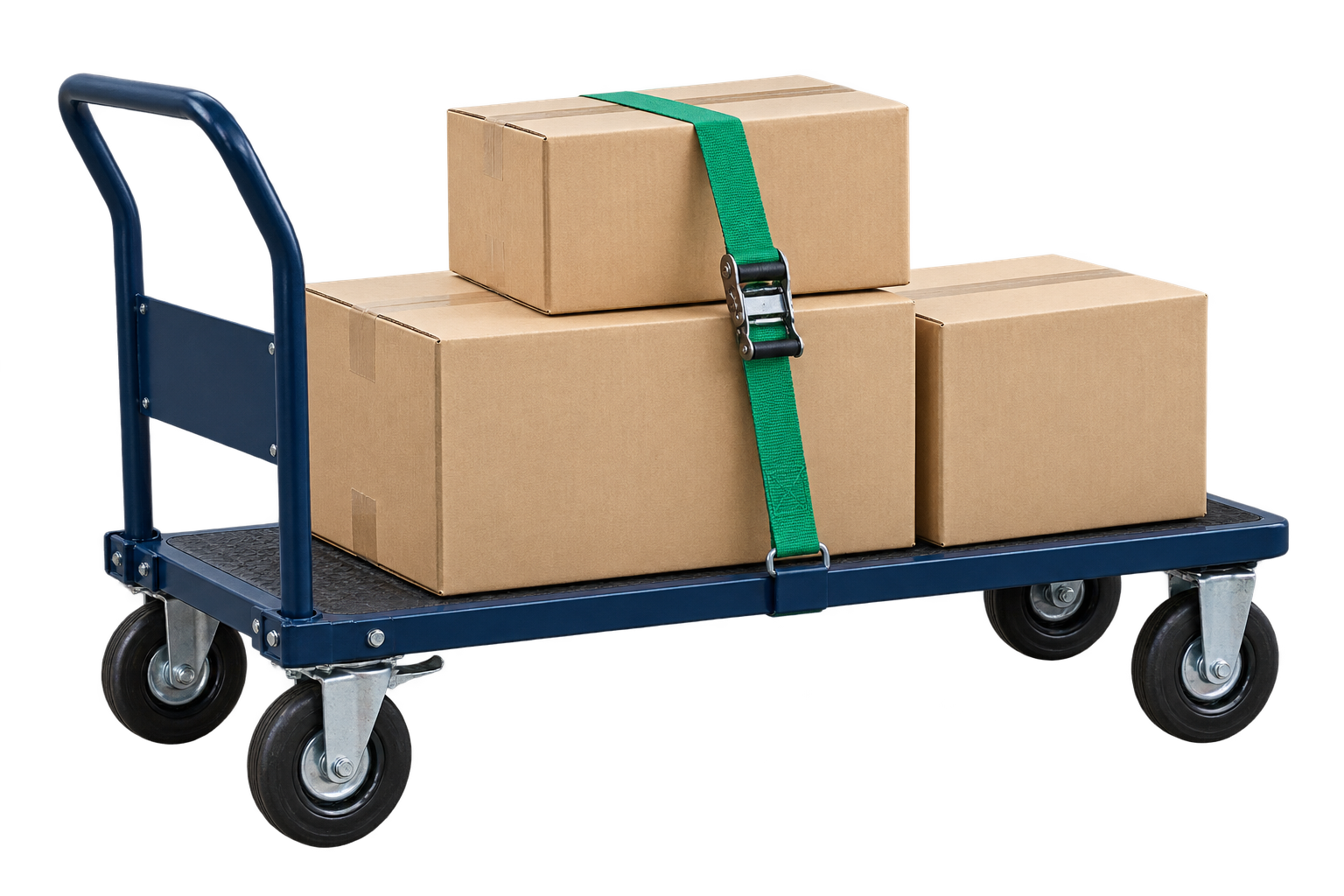
Push, track and document the parcel.
Configure carrier APIs, retain AWB and tracking details, sync status and generate a branded delivery note.
Warehouse transfers
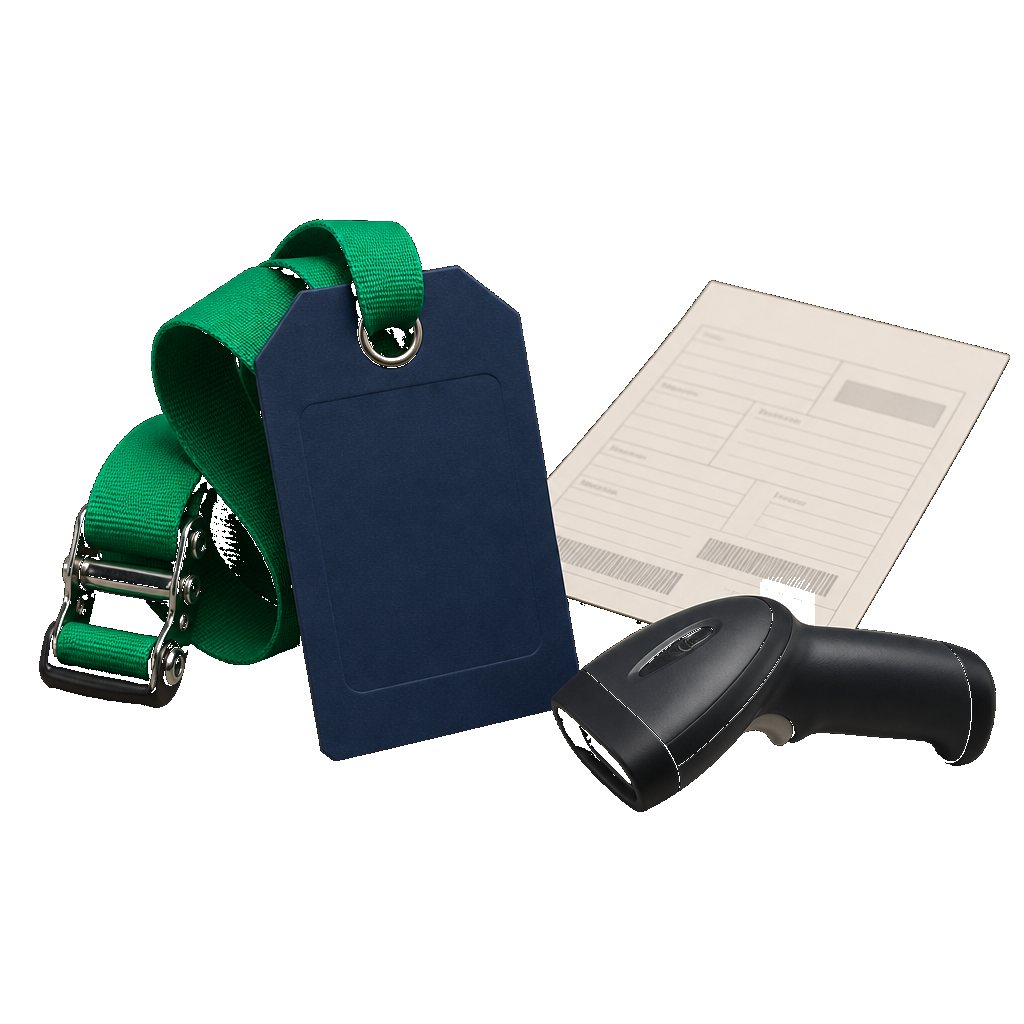
Make in-transit stock visible.
Draft, dispatch, receive or cancel itemised movements between locations without reducing them to a stock correction.
Replenishment
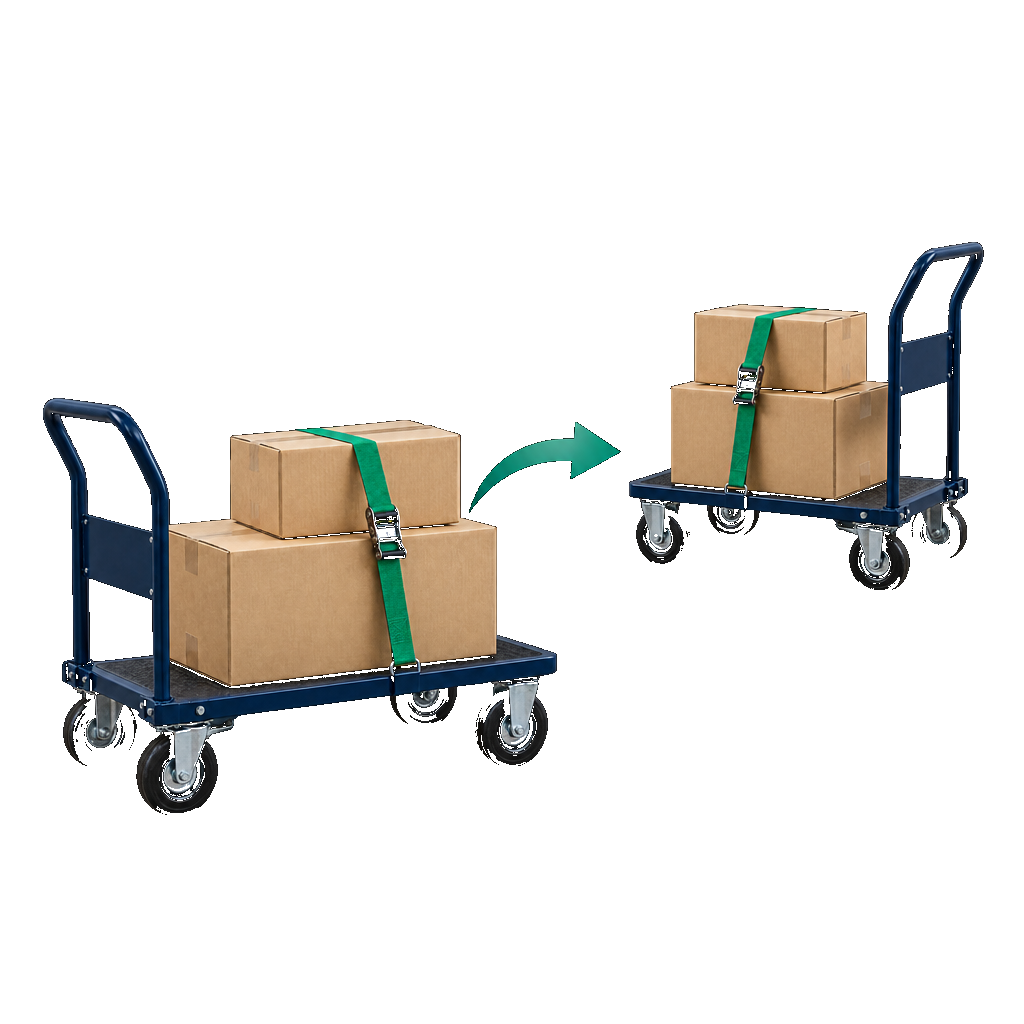
Turn the threshold into draft purchase orders.
Review suggested quantities and vendors, then group selected lines into one purchasing document per supplier.

Batches & expiry
Know which lot should move first.
Attach batch, expiry, warehouse, quantity and cost to goods-in, then surface units at risk and consume FEFO.

Adjustments
Correct stock without deleting the reason.
Preview signed warehouse corrections, protect against negative balances and reverse a posted adjustment through cancellation.

Bundles & kits
Build the finished item from its components.
Calculate buildable quantity, assemble or disassemble by warehouse and retain every component movement.
Price lists
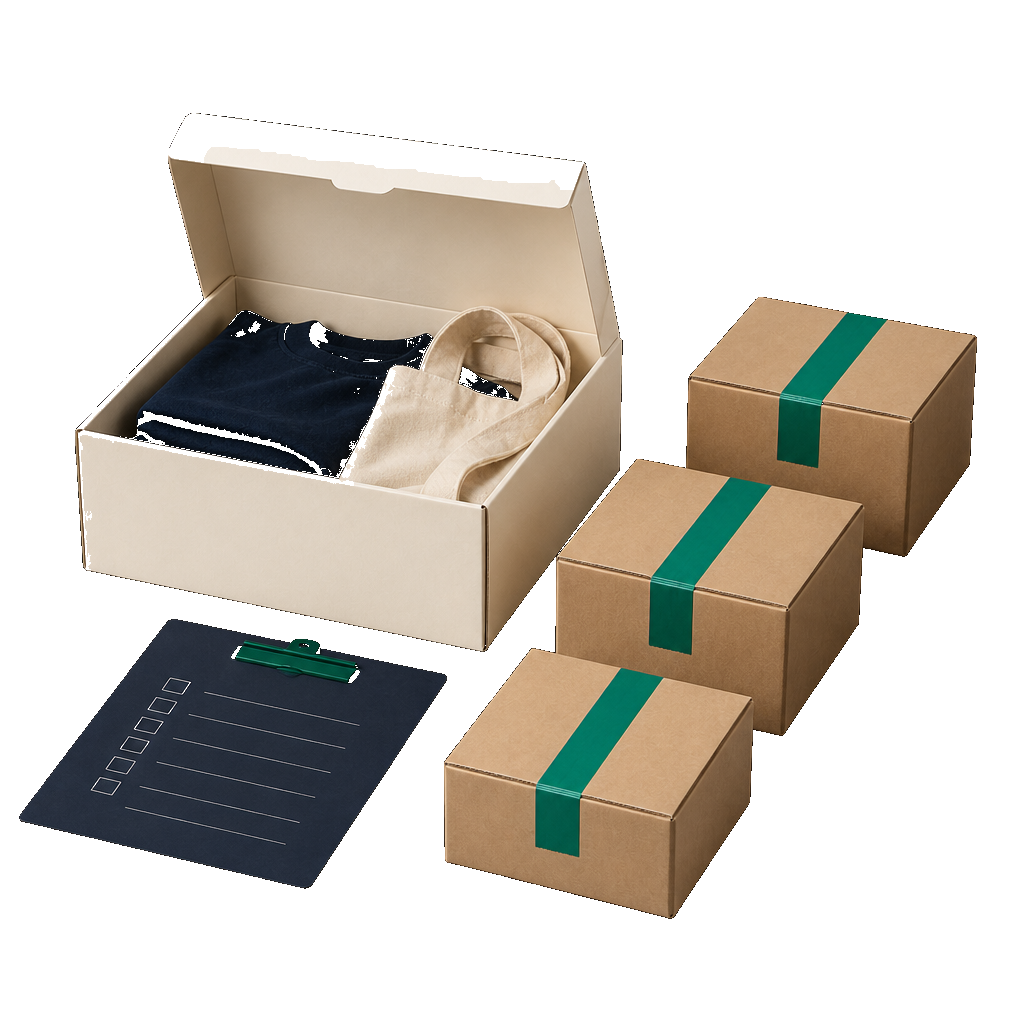
Keep reusable item pricing ready for sales.
Create named or default lists, set item-level prices and compare each one with the standard selling price.

Sales returns
Bring the goods and customer credit back together.
Start from the invoice or shipment, cap returnable quantities, restock a warehouse and optionally create the credit note.

One connected fulfilment flow
Follow the movement from demand to resolution.
Move through five moments to see how the source invoice, warehouse stock, courier handoff, delivery states and exceptions remain connected.
Review
Start with what is waiting to move.
Open fulfilment work, committed units, stock position and shipment history establish the next dispatch decision.
- Invoices to fulfil
- Warehouse availability
- Low-stock context
Committed. Dispatched. Traced. Received.
The movement keeps its meaning.
The movement record
Keep each physical handoff explainable.
Source documents establish demand. Warehouses establish location. Shipment and transfer states establish custody. Replenishment and returns establish the next action.
Commit
Begin with the sale that needs fulfilment.
The invoice, customer, remaining lines and warehouse availability define exactly what can leave next.

Move
Give the movement a state and a source.
Shipment and transfer records distinguish goods dispatched, in transit, received, delivered or cancelled.

Trace
Retain parcel and lot identity.
Tracking number, AWB, status events, delivery note, batch and expiry details keep the physical handoff explainable.
Respond
Let exceptions create the right next record.
Shortages become purchase drafts; returns become stock and credit; cancellations reverse their operational effect.

Fulfilment control tower
See the work before it becomes an exception.
Invoices waiting to ship, units committed, in-transit dispatches, low-stock items and expiring batches sit alongside warehouse and stock-value context.
Complete capability directory
Everything from fulfilment demand to returned stock.
Control tower
Read fulfilment, movement and stock risk from one operational dashboard.
- See invoices awaiting fulfilment with their combined value and committed unit count.
- Track shipments currently in transit and shipments dispatched during the current month.
- Surface low-stock items, batches expiring within 30 days and total units at risk.
- Compare weighted-average and FIFO stock values.
- Review six-month invoice and shipment trends alongside the current fulfilment-status mix.
- Compare stock value by warehouse and identify the highest-value items.
- Open current fulfilment work, recent shipments and low-stock items from the dashboard.
Shipments
Turn an issued invoice into a traceable warehouse dispatch.
- Create a shipment against an issued or paid invoice rather than re-entering the sale.
- Ship an invoice completely or in parts while respecting each line's remaining quantity.
- Choose the dispatch warehouse and retain shipment number, customer, invoice and item references.
- Record carrier, tracking number, ship date and operational notes.
- Move delivery status forward through Shipped, In transit, Out for delivery and Delivered.
- Search shipment number, invoice, customer, carrier or tracking number and filter by status.
- Review item count, total units, warehouse, logistics details and the chronological status-event trail.
- Cancel an eligible shipment to restore stock, shipped quantity, FIFO cost and batch context.
Couriers & delivery notes
Connect dispatch records to the carrier handoff and customer-facing document.
- Create and maintain multiple courier providers, including an organisation default.
- Configure provider base URL, authentication header and securely stored API key or token.
- Define push method, request URL and an optional JSON body template for a courier API.
- Map AWB, tracking URL and status fields from the provider response.
- Configure a later tracking request and map the returned courier status.
- Test provider configuration before using it on a live shipment.
- Push a shipment to a chosen provider, retain its AWB and tracking URL, and sync status later.
- Use manual carrier and tracking details when an automatic courier connection is not configured.
- Generate a delivery-note PDF and choose Standard, Accent or Minimal presentation.
- Apply a delivery-note logo, accent colour and reusable footer copy.
Warehouse transfers
Keep stock between locations visible as a staged movement, not a silent correction.
- Create an itemised transfer between different source and destination warehouses.
- Record transfer date, item quantities and notes while viewing source availability.
- Edit or delete a transfer while it remains in Draft.
- Dispatch a transfer to remove quantity from the source and mark the goods In transit.
- Receive the transfer to add quantity at the destination warehouse.
- Cancel an unreceived transfer and return its quantity to the source.
- Keep Received and Cancelled transfers read-only as the permanent movement record.
- Review the transfer number, route, dates, item count and status from the transfer list.
Replenishment
Turn a reorder threshold into reviewed purchasing work.
- Generate candidates for items at or below their configured reorder level.
- See on-hand quantity, reorder point, suggested quantity, cost and preferred vendor.
- Distinguish out-of-stock items and candidates without a preferred vendor.
- Search, filter, sort and paginate the replenishment queue.
- Select only the lines that should be ordered and adjust the requested quantity.
- Choose or change the vendor on each selected line.
- Review selected item count, vendors used, missing vendors and estimated order value.
- Create one draft purchase order per vendor from the selected replenishment lines.
Batches & expiry
Keep lot identity and shelf-life risk attached to the quantity.
- Enable or disable batch tracking for an individual inventory item.
- Record goods-in with batch number, expiry date, warehouse, quantity and optional unit cost.
- Review every batch held for a selected item with its remaining quantity and status.
- See expired batches and batches due within 30 or 90 days.
- Measure the total units held in expiry-risk batches.
- Search items before opening their lot history or adding a new batch.
- Consume tracked stock using first-expiry-first-out ordering.
- Retain warehouse context when batches are received, consumed or restored.
Stock adjustments
Correct physical stock without erasing the explanation.
- Post a multi-item increase or decrease against a selected warehouse.
- Record an adjustment date, standard reason and optional notes.
- View the current quantity and resulting quantity before posting each line.
- Prevent a decrease from taking warehouse stock below zero.
- Assign a numbered, posted adjustment record to every correction.
- Search adjustments by number, warehouse or reason.
- Cancel a posted adjustment to reverse its stock effect while retaining its audit record.
Bundles & kits
Represent a sellable kit as a controlled combination of stocked components.
- Choose an existing inventory item as the finished bundle.
- Add multiple component items and define the quantity required for each finished unit.
- Prevent circular bundle definitions that would make assembly unsafe.
- Calculate buildable quantity from current component availability.
- Review component on-hand and the number of kits each component can support.
- Assemble a chosen quantity in a warehouse by consuming components and adding finished stock.
- Disassemble finished stock to return its components to the selected warehouse.
- Carry component and finished-item changes into stock movement history.
Price lists
Keep reusable item pricing ready for the sales workflow.
- Create a named price list and choose whether it is the default.
- Add existing inventory items and set a specific selling price for each one.
- Compare each price with the item's standard selling price as a percentage difference.
- Review item count and the average movement above or below standard pricing.
- Edit the name, default state, item selection and prices later.
- Delete a price list that is no longer required.
Sales returns
Bring goods, customer credit and the original fulfilment record back together.
- Start a return from an issued invoice and retain invoice and customer context.
- Optionally link the return to a specific non-cancelled shipment.
- Limit each line to the quantity sold, or to the quantity dispatched on the selected shipment.
- Choose which items and quantities are coming back and record the return date and reason.
- Optionally restock returned inventory into a selected warehouse.
- Optionally create the linked customer credit note in the same workflow.
- Search returns by return number, invoice, customer or credit-note number.
- Cancel a received return to reverse its restock and void the linked credit note.
Questions, answered
Before the first dispatch.
How is Supply Chain different from Inventory?
Inventory defines items, warehouses, quantities and valuation. Supply Chain focuses on operational movement: invoice fulfilment, shipments, courier handoff, transfers, replenishment, batches, adjustments, kits and returns. The two use the same underlying item and warehouse context.
Can we ship an invoice in parts?
Yes. A shipment can include all or part of the remaining quantity on an issued or paid invoice. The workflow prevents a line from being shipped beyond its available balance.
Can Scalar360 connect to our courier?
Courier profiles support configurable API URLs, authentication, request templates and response-field mappings for push and tracking operations. Because carrier APIs vary, compatibility should be tested with the provider configuration before rollout.
What happens when a shipment is cancelled?
An eligible shipment cancellation restores warehouse stock and the invoice's shipped quantity, reverses its recorded FIFO cost effect and preserves a cancellation event on the shipment.
Can stock be moved between warehouses without a manual adjustment?
Yes. Transfer orders preserve Draft, In transit, Received and Cancelled stages. Dispatch removes stock from the source; receipt adds it to the destination; cancellation returns an unreceived transfer to the source.
How does replenishment create purchase orders?
The reorder view starts from items at or below their threshold. After quantities and vendors are reviewed, selected lines are grouped into one draft purchase order per vendor.
Let’s connect
your business.
Bring your workflows. We’ll show you how they fit together in Scalar360.
Book a demosales@scalar360.com