



Scalar360 Purchasing & Payables

Purchasing and payables in one recordOrder with context. Pay with confidence.

Connect the supplier, purchase order, warehouse receipt, vendor bill and every settlement—so the amount you owe always has an operational story behind it.

VendorsPurchase ordersPartial receiptsVendor billsInput GSTPaymentsDebit notesPayablesAgeingPurchase ledgerCSV reports

A payable should never begin as a mystery.

When purchasing, receiving and accounts keep different records, even a valid vendor bill turns into a search for what was ordered and what actually arrived.

Scalar360 carries the supplier and order context into stock receipt, billing and payment—so the balance can be understood before it is settled.

One connected obligation

Follow the purchase from terms to settlement.

Move through the workflow to see how supplier context and document relationships stay available at each stage.

Vendor

Start with the terms behind the supplier.

Contact, tax registration, address and credit terms establish the context reused by orders, bills and payable reporting.
  • GSTIN on record
  • 30-day terms
  • Kerala supplier

Ordered. Received. Billed. Paid.

One story, four moments.

The purchasing journey

Keep the agreement beside the outcome.

The purchase order sets expectation. Receiving records reality. The bill and payment close the obligation without losing either.

Supplier

Know who you buy from—and on what terms.

Vendor contact, tax, address and credit information carries into the documents and balances that follow.

Commitment

Record price, tax and delivery before the goods arrive.

The purchase order establishes the commercial baseline and opens direct paths to receiving and billing.

Receipt

Receive the delivery line by line.

Full or partial quantities enter the selected warehouse with a numbered receipt that remains reversible and auditable.

Settlement

Pay the obligation you can explain.

Bills, payments and debit notes resolve into an outstanding balance with vendor and ageing context intact.

Payables that show their age

Prioritise the obligation, not the loudest reminder.

Vendor balances separate current and overdue value, while ageing buckets show how long the open amount has been waiting.

Complete capability directory

Everything purchasing keeps connected.

Vendor records

Keep the commercial, tax and contact context behind every supplier transaction.

  • Create, edit and remove vendor records through permission-controlled actions.
  • Store the vendor name, contact person, phone and email.
  • Keep GSTIN and PAN tax identifiers with the supplier record.
  • Maintain street address, city, state and PIN code.
  • Set payment terms and a separate credit-days value.
  • Add internal notes about the supplier relationship.
  • Block a vendor without deleting its transaction history and reactivate it later.
  • Search, sort and filter vendors by status and creation date.
  • Review payable balance, payment terms and latest purchase order from the vendor page.
  • See purchase orders, bills and payments together in the vendor history.

Purchase orders

Document what was agreed before goods arrive or the invoice reaches accounts.

  • Create, edit and remove purchase orders for a selected vendor.
  • Search the item catalogue when adding order lines or enter an item description where supported.
  • Set ordered quantity, rate and GST rate for each line.
  • Use 0%, 5%, 12%, 18% or 28% GST line rates.
  • Set the purchase-order date and expected delivery date.
  • Keep order notes with the purchasing document.
  • Calculate taxable subtotal, GST and grand total before saving.
  • Split tax into CGST and SGST for intrastate suppliers or IGST for interstate suppliers.
  • Search and sort purchase orders, filter by date and separate billed from unbilled orders.
  • Open stock receipt or vendor-bill creation directly from an existing purchase order.

Goods receipts

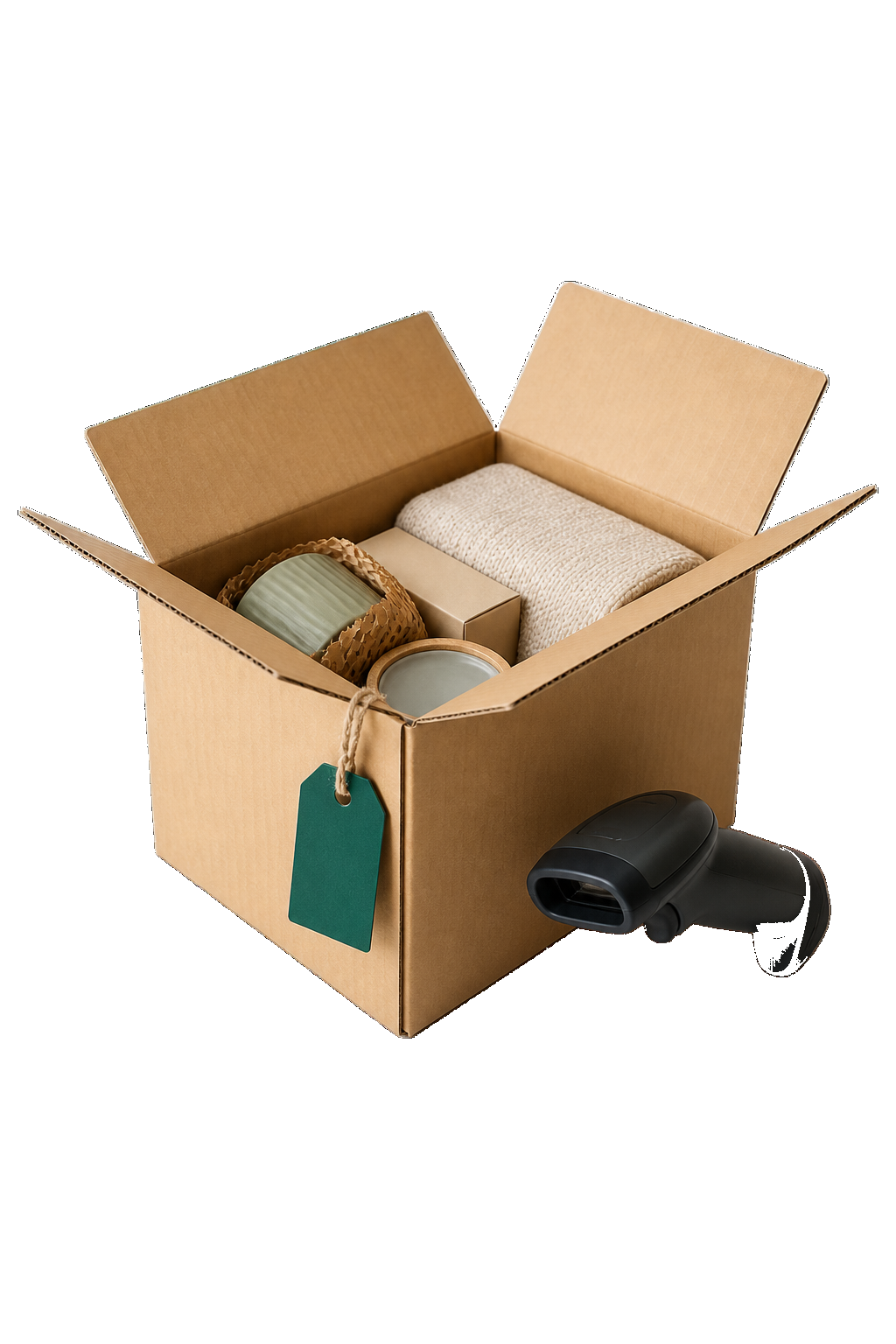
Receive what actually arrived into the warehouse and preserve the difference from the order.

  • Review receivable purchase orders in a dedicated stock-receipt queue.
  • Search by purchase-order number, vendor or item.
  • Filter the queue by receipt status, vendor, warehouse and date range.
  • Choose the warehouse receiving the goods and the received date.
  • Record received quantity separately for every purchase-order line.
  • Accept partial deliveries without closing the remaining quantity.
  • Prevent receipt quantities from exceeding the amount still outstanding on the order.
  • Add delivery-note, vehicle, condition or other receiving notes.
  • Keep a paginated history of posted and cancelled receipts.
  • Cancel a posted receipt with a reason and reverse the related stock movement.
  • Retain the receipt number, purchase order, warehouse, items, quantity and status for audit.

Vendor bills

Capture the supplier invoice with its dates, references, tax and originating order.

  • Create, edit and remove vendor bills through the supported permissions.
  • Link a bill to a purchase order and prefill the vendor and line items.
  • Prevent the same purchase order from being converted into more than one bill.
  • Keep an internal bill number and the vendor’s own bill reference.
  • Record bill date and due date.
  • Add inventory items, quantities, rates and GST rates as bill lines.
  • Review taxable value, GST split, discounts and total from the bill record.
  • Move bills through the supported Draft, Due, Overdue and Paid presentation states.
  • Search bills by number, vendor, purchase order or notes.
  • Filter bills by payment status, vendor and bill-date range, then sort the results.
  • Download a formatted vendor bill PDF.

Payments & settlement

Record how a bill was settled and retain every payment behind the remaining balance.

  • Record full or partial payment against an open vendor bill.
  • Capture payment amount, method, reference and date.
  • Prevent a payment from exceeding the bill’s current outstanding amount.
  • Update the paid amount and payment status after each settlement.
  • Keep a transaction-by-transaction payment history on the bill.
  • Show the GST share represented by recorded payments in the detailed history.
  • Include active debit-note value when calculating the effective settled amount.
  • Mark the bill as fully paid when its balance reaches zero.
  • Write vendor-payment activity to the organisation audit trail.

Debit notes & adjustments

Reduce a vendor obligation with a traceable commercial adjustment.

  • Raise a debit note against a selected vendor.
  • Optionally link the adjustment to one of that vendor’s bills.
  • Record an amount, predefined reason and supporting notes.
  • Keep the purchase-order relationship where the source bill provides it.
  • Search debit notes by number, vendor, bill or reason.
  • Filter active and cancelled notes and use a note-date range.
  • Review the total value of debit notes raised in the current result set.
  • Edit, cancel or remove debit notes through the supported workflow.
  • Apply active debit notes when calculating bill and vendor outstanding balances.

Payables & ageing

See who is owed, how much is overdue and which obligations need attention first.

  • Review total outstanding payable and total overdue value.
  • See the counts of overdue bills and bills due soon.
  • Group outstanding value by vendor.
  • Separate each vendor’s current and overdue amounts.
  • Inspect ageing buckets across the payable balance.
  • Open the individual outstanding bills behind a vendor balance.
  • Filter payable vendors by all, current or overdue obligations.
  • Search payable suppliers by vendor name, GSTIN or state.
  • Sort vendors by total, overdue or current balance and narrow the reporting date range.
  • Keep payable views scoped to the organisation and the user’s access.

Purchasing oversight

Connect day-to-day buying activity with spend, payment and accounting visibility.

  • See total payable, overdue payable, this-month spend and paid-to-date values.
  • Review vendor, bill, purchase-order and debit-note counts.
  • Compare spend value and bill volume across the latest six months.
  • Track the percentage of billed value already paid.
  • Compare top vendors by current and overdue balance.
  • Review recent bills, overdue bills and open purchase orders from the dashboard.
  • Open the purchase ledger with search, date range, sorting and pagination.
  • Run the payables report for a selected period with vendor, GSTIN, terms and payable value.
  • Export the payables report as CSV.
  • Keep purchase, payment and stock-receipt events available through connected records and audit activity.

Questions, answered

Before the next order.

Can purchase orders be received in more than one delivery?

Yes. The receipt workflow records received quantity per line and preserves the remaining quantity for a later delivery. It prevents a receipt from exceeding what is still open on the order.

Can a vendor bill be created from a purchase order?

Yes. Opening bill creation from a purchase order prefills its vendor and items. Once a bill references that order, the product prevents a second PO-to-bill conversion.

How does GST work on purchase documents?

Purchase orders and bills accept supported GST rates per line. Supplier and organisation state determine whether tax is shown as CGST plus SGST or as IGST, and the bill retains the calculated split.

Can we make partial payments?

Yes. Record multiple payments with amount, method, reference and date. The product prevents overpayment and keeps the complete payment history behind the bill balance.

What happens if a stock receipt is entered incorrectly?

An authorised user can cancel the posted receipt with a reason. The receipt remains in history as Cancelled and the related stock movement is reversed.

How are vendor returns or commercial adjustments handled?

The current payable adjustment is a debit note. It can be linked to a vendor bill and reduces the outstanding amount. Physical stock receipt mistakes are handled separately through receipt cancellation and reversal.

Let’s connect
your business.

Bring your workflows. We’ll show you how they fit together in Scalar360.

Book a demosales@scalar360.com