Scalar360 Project Management
Project work connected to billingPlan the work. Keep the context.
Build the project, shape its stages and keep tasks, people, conversations, files and time together. Review delivery as it changes, then carry eligible hours into customer invoicing.
Retail rollout · PRJ-042
ActiveProject ownerAnanya RaoHigh priority · Due 28 September
Progress68%
Team workload
6 membersOpen work by member
Rohan Mehta7 · 1 overdue
Mira Shah5 · on track
Billable time
Unbilled12.5h₹22,500 across 4 entries
CustomerAster Retail
Default rate₹1,800/h
Project portfolioTask boardsCustom stagesMy TasksChecklistsMentionsTask filesTime trackingWorkloadActivityTime billing
Delivery loses momentum when its context is scattered.
A board can show movement, but not enough on its own. Teams also need ownership, dates, discussion, supporting files, time and the customer context behind the work.
Scalar360 keeps those details on the project and task, so progress can be understood without reconstructing it from messages and spreadsheets.
Project operations
One workspace from brief to billable time.
The page follows the actual work: establish the project, organise the board, execute with the team and review the operational trail.
Project records
Give every delivery a clear home.
Owners, priority, status, colour and dates make the project understandable before the first task moves.

Boards & lists
Move the work—not the context.
Create detailed tasks, then drag them through the board or inspect them in a filterable list.
Custom workflow
Shape each board around delivery.
Add, colour, order and hide project-specific stages while retaining a reliable open-to-done structure.
My Tasks
Give each person one focused queue.
Assigned work across projects is grouped by urgency and remains searchable, sortable and filterable.

Checklists
Keep the small steps on the task.
Add, reorder and complete checklist items while visible totals show what remains.
Team collaboration
Put the conversation beside the work.
Comments, mentions, watchers and assignment notifications keep the right members in the loop.

Task files
Attach the evidence where it matters.
Upload, list, download and remove task files with storage usage and file metadata retained.

Time tracking
Record the hours behind delivery.
Log dated project or task time, describe the work and distinguish billable hours and rates.
Billing context
Carry eligible time into invoicing.
Link the customer, review unbilled value and group billable entries into task-and-rate invoice lines.
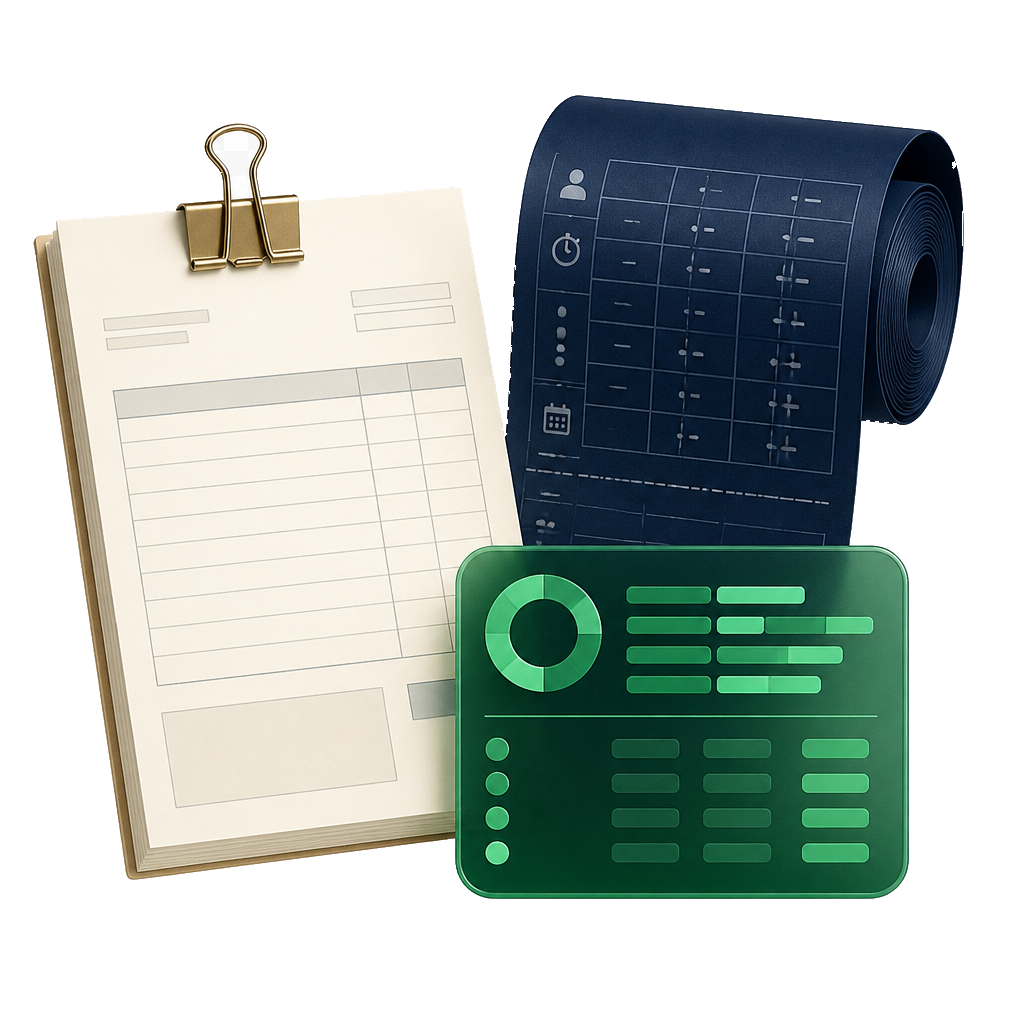
Delivery oversight
Read progress from summary to event.
Completion, deadlines, workload, activity and permission-aware controls make project health inspectable.
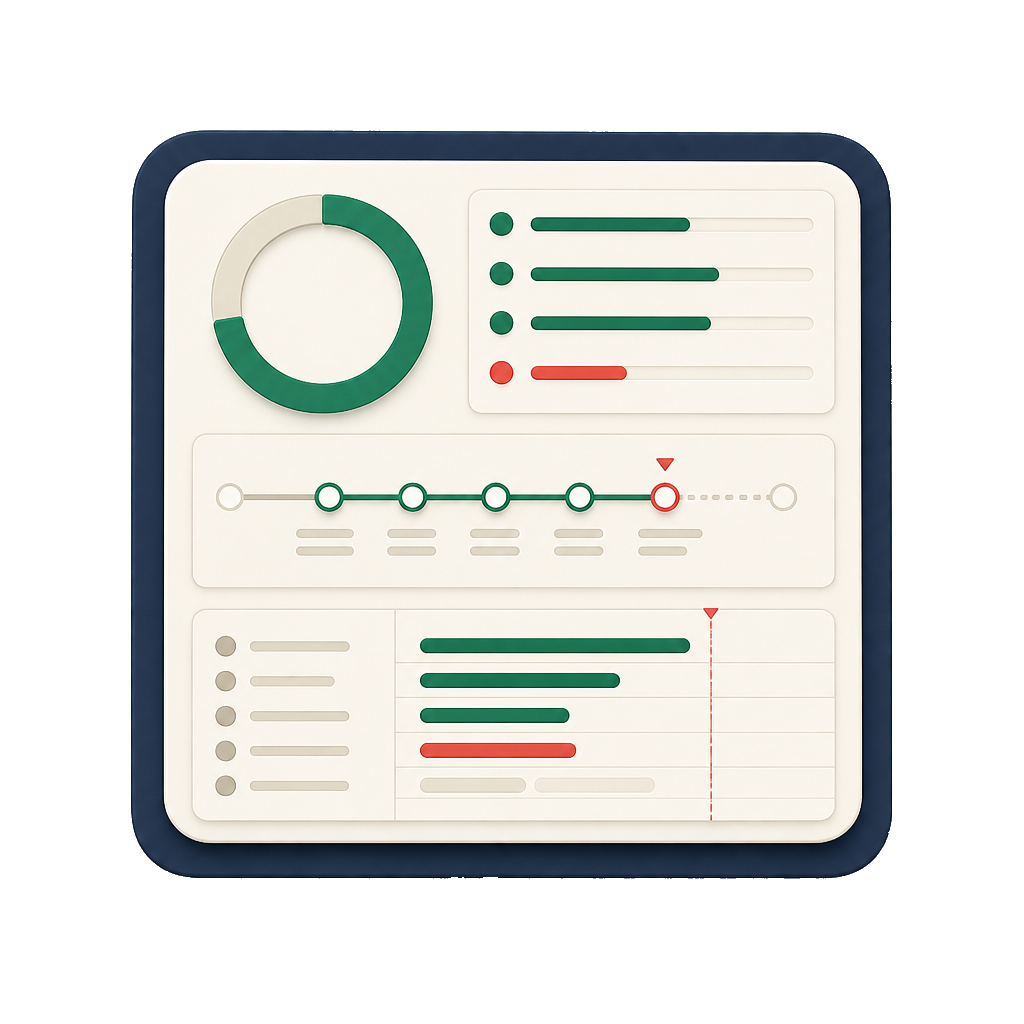
One delivery thread
Follow the work from definition to invoice.
Move through five connected views to see how ownership, execution, oversight and billable time remain part of the same project record.
Define
Give delivery a clear home.
Create the project, set its owner, priority and dates, then connect the customer and working rate where billing context is required.
- Owner assigned
- Due 28 Sep
- Customer linked
Defined. Assigned. Discussed. Delivered.
The work keeps its memory.
The delivery journey
Make the next action—and its history—visible.
The project defines the boundary. The workflow gives work a path. The task holds the detail. Progress, time and activity make review concrete.
Project
Define the delivery record.
Owner, status, priority, colour, dates and customer context establish the boundaries of the work.

Workflow
Make progress visible in the board.
Project-specific stages, task position and a clear Done state turn delivery into an understandable flow.
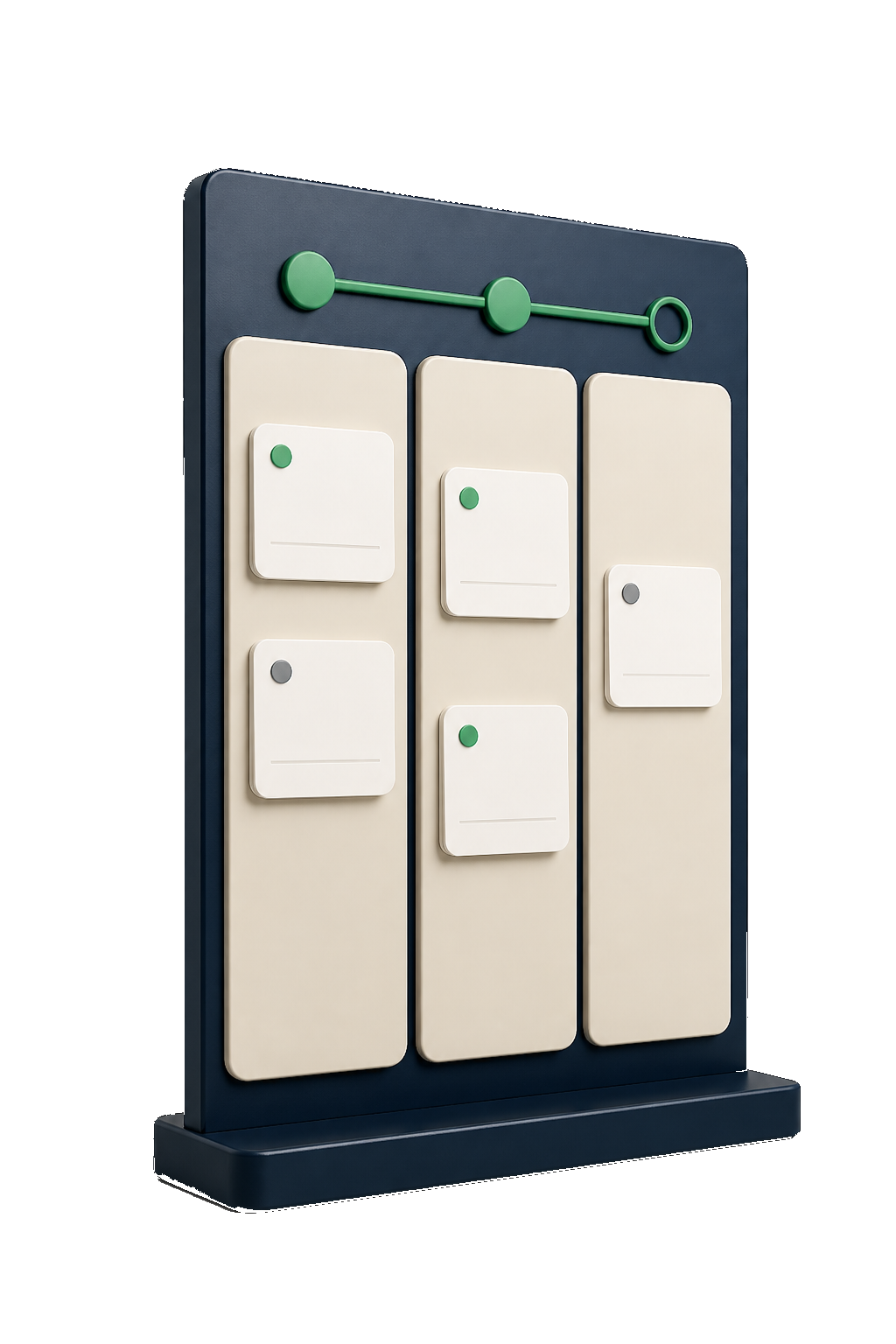
Team
Keep coordination on the task.
Assignees, checklists, comments, mentions, watchers and files stay beside the work they explain.

Review
Connect completion, time and billing.
Progress, workload, activity and billable hours provide the operational context behind the resulting invoice.

Workload in context
See pressure before a deadline slips.
Open and overdue tasks by member sit beside completion, due-soon work and current project status, giving managers a useful place to begin the review.
Complete capability directory
Everything behind a more accountable project.
Projects & portfolio
Define delivery records clearly, then find, sort and review the whole portfolio.
- Create projects with a name, description and colour.
- Set Planning, Active, On hold or Completed status.
- Set Low, Medium, High or Urgent priority.
- Record project start and due dates.
- Assign a project owner from the member list.
- Use generated project codes in task references.
- Search projects by name or code.
- Filter the directory by project status.
- Sort by update time, creation time, name, code, due date, priority or status.
- Switch between grid and list views.
- Move through paginated project results.
- Archive and restore projects without erasing their history.
- Reopen a completed project when delivery resumes.
Tasks, boards & lists
Break delivery into actionable records and work with them in the view that fits the moment.
- Create and edit tasks inside a project.
- Record a title and detailed description.
- Set task priority, start date and due date.
- Assign as many as 50 project members to one task.
- See a human-readable project code and task number on every task.
- Work from a visual stage board or a detailed list.
- Drag tasks between stages on the board.
- Reorder tasks within a stage.
- Load long stage columns progressively.
- Search task titles and descriptions.
- Filter by stage, assignee, priority, due state or date range.
- Sort and paginate task lists.
- Move a task into a Done stage to complete it.
- Soft-delete tasks and restore them when needed.
- Open a task directly from a shared project link.
Custom project workflows
Shape each project board around the way that delivery team actually moves work.
- Give every project its own workflow stages.
- Add and rename stages.
- Choose a colour for each stage.
- Mark stages as Not started, Active or Done.
- Reorder stages to match the delivery sequence.
- Hide a stage without removing its history.
- Remove an unused stage.
- Choose a replacement stage when removing one that still contains tasks.
- Move affected tasks to the chosen replacement stage.
- Keep at least one visible open stage and one visible Done stage.
- Create up to 20 stages in a project workflow.
- Protect simultaneous workflow edits with revision checks.
Assignments & My Tasks
Give every member a focused queue across projects while managers retain the wider picture.
- See assigned work from every project in one My Tasks view.
- Group assigned work into Overdue, Due soon and Later.
- Search the personal task queue.
- Filter by project, stage or priority.
- Filter for overdue, due-soon or undated work.
- Sort by earliest or latest due date.
- Sort high-priority work first.
- Sort by recent updates or title.
- Move through paginated personal results.
- Open the exact task in its project workspace.
- See open and overdue work by member on the project dashboard.
Task checklists
Keep the smaller completion steps on the task instead of creating a second planning system.
- Add checklist items to a task.
- Edit checklist item text.
- Check and uncheck items as work changes.
- Reorder checklist items.
- Delete checklist items.
- See completed and total checklist counts.
- View checklist progress from task cards and task detail.
- Protect concurrent checklist changes with record versions.
Comments, mentions & watchers
Keep delivery conversation close to the work and make the right people aware of changes.
- Add comments to a task.
- Edit an eligible comment.
- Delete and restore comments without losing the thread.
- Mention project members in comments.
- Notify mentioned members.
- Watch or unwatch a task.
- See who is watching a task.
- Notify watchers about relevant task activity and comments.
- Notify assignees when a task is created or updated.
- Send targeted deadline notifications for due work.
- Calculate comment edit and delete permissions for the current viewer.
Task files & storage
Keep delivery evidence on the task with controlled download and organisation-level storage visibility.
- Upload attachments to a task.
- Use object-backed storage for project files.
- Enforce the 10 MB attachment limit in the project interface.
- Retain filename, content type, size and uploader.
- Retain file creation time and attachment version.
- Calculate and retain a SHA-256 checksum.
- List the files attached to a task.
- Download through a generated file link.
- Delete an attachment when authorised.
- See used, available and total project storage for the organisation.
- Clean up deleted attachment objects in the background.
Project time tracking
Record the hours behind delivery with enough context to support review and billing.
- Log time against a project or a specific task.
- Record hours in quarter-hour steps in the project interface.
- Choose the date of the work.
- Mark an entry as billable or non-billable.
- Add a description to the time entry.
- Set an hourly rate on an entry.
- Use the project's default hourly rate when an entry has no rate.
- List all time recorded for a project.
- Filter time to the current task.
- Retain the member, task, hours, rate and calculated amount.
- Delete eligible unbilled time entries.
- Protect invoiced time from later editing or deletion.
Customer & billing context
Carry approved delivery time into invoicing without rebuilding the work record elsewhere.
- Link a project to its bill-to customer.
- Set a default hourly rate for the project.
- See total, billable, unbilled and invoiced time.
- See unbilled and invoiced amounts.
- Review time-entry counts alongside billing totals.
- Generate an invoice from unbilled billable time.
- Group invoice lines by task and hourly rate.
- Create service lines with hours and rates.
- Mark the included time entries as invoiced.
- Open the resulting invoice from the project workflow.
- Require both project-edit and invoice-create permission for invoice generation.
Progress, activity & control
Review delivery health from current totals down to the individual change that moved the work.
- See active and archived project totals.
- See total, open, completed and overdue task counts.
- See work due this week and the overall completion rate.
- Review progress for each active project.
- Review due-soon and upcoming tasks.
- See member workload with open and overdue counts.
- Calculate project progress from completed and total tasks.
- Read a paginated project activity feed.
- Filter activity to one task.
- Retain the event, detail, actor and timestamp.
- Refresh visible project data after organisation-scoped live events.
- Prevent stale edits from silently overwriting newer task changes.
- Make completed and archived workspaces read-only until reopened or restored.
- Control project overview, creation, editing, task editing, deletion and wider access separately.
- Gate the Projects area through the organisation's enabled module access.
Questions, answered
Before the project begins.
Can every project have its own stages?
Yes. A project workflow can contain up to 20 stages with its own names, colours, order and Not started, Active or Done meaning. At least one visible open stage and one visible Done stage must remain.
Can several people be assigned to the same task?
Yes. A task can have as many as 50 assignees, provided those people are members of the project.
How does My Tasks work?
My Tasks brings assigned work from every project into one queue. It can group work by overdue, due soon and later, then filter by project, stage, priority or due state.
Can teams keep discussion and files on a task?
Yes. Tasks support comments, member mentions, watchers, checklists and file attachments. The project interface enforces a 10 MB limit for each attachment and shows the organisation's project storage usage.
Does Project Management include time tracking?
Yes. Members can log dated time against a project or task, describe the work, mark it billable and record a rate. A project default rate can fill the rate when an entry does not specify one.
Can project time become an invoice?
Yes. An authorised user can generate an invoice from unbilled billable time when a bill-to customer is linked. Scalar360 groups lines by task and rate and marks the included entries as invoiced.
Does this include Gantt charts, dependencies or automatic timers?
No. The current project experience focuses on board and list task management, custom team collaboration, manual time entries, workload, activity and time-based invoicing.
Let’s connect
your business.
Bring your workflows. We’ll show you how they fit together in Scalar360.
Book a demosales@scalar360.com