

Scalar360 Manufacturing

Manufacturing from plan to finished stockFrom demand to finished stock.

Define the build, plan its materials, move every operation and receive the result—with quantity, quality, scrap and production cost kept in the same record.

Bills of materialsSales demandProduction plansMaterial requestsWork ordersJob cardsWorkstationsQuality checksScrapSubcontractingFinished stock

The production number is only useful when the work behind it is visible.

A finished quantity cannot explain which demand started the run, whether the material was ready or where an operation slowed down.

Manufacturing keeps the definition, plan, floor activity and stock result connected—so each handoff begins with the same context.

One connected run

The next production decision already has the last one.

Explore how the same build moves from definition to planning, material preparation, execution and completion.

Define

The build starts with a dependable BOM.

Set output, components, expected scrap and routing once. The same definition drives planning, costing and shop-floor operations.
  • Output 100 units
  • 4 components
  • 3 routed operations

The plan sets the intent. The floor records the truth.

Make both visible.

Production, end to end

A traceable path from requirement to receipt.

Each step adds operational evidence to the same manufacturing story instead of starting another disconnected tracker.

Demand

Start with what needs to be made.

Use sales demand, low-stock suggestions or a direct production decision to assemble the plan and its dates.

Materials

Know the shortage before the floor does.

Consolidated requirements compare each component with availability and can become a material request for purchasing.

Execution

Turn the routing into work people can move.

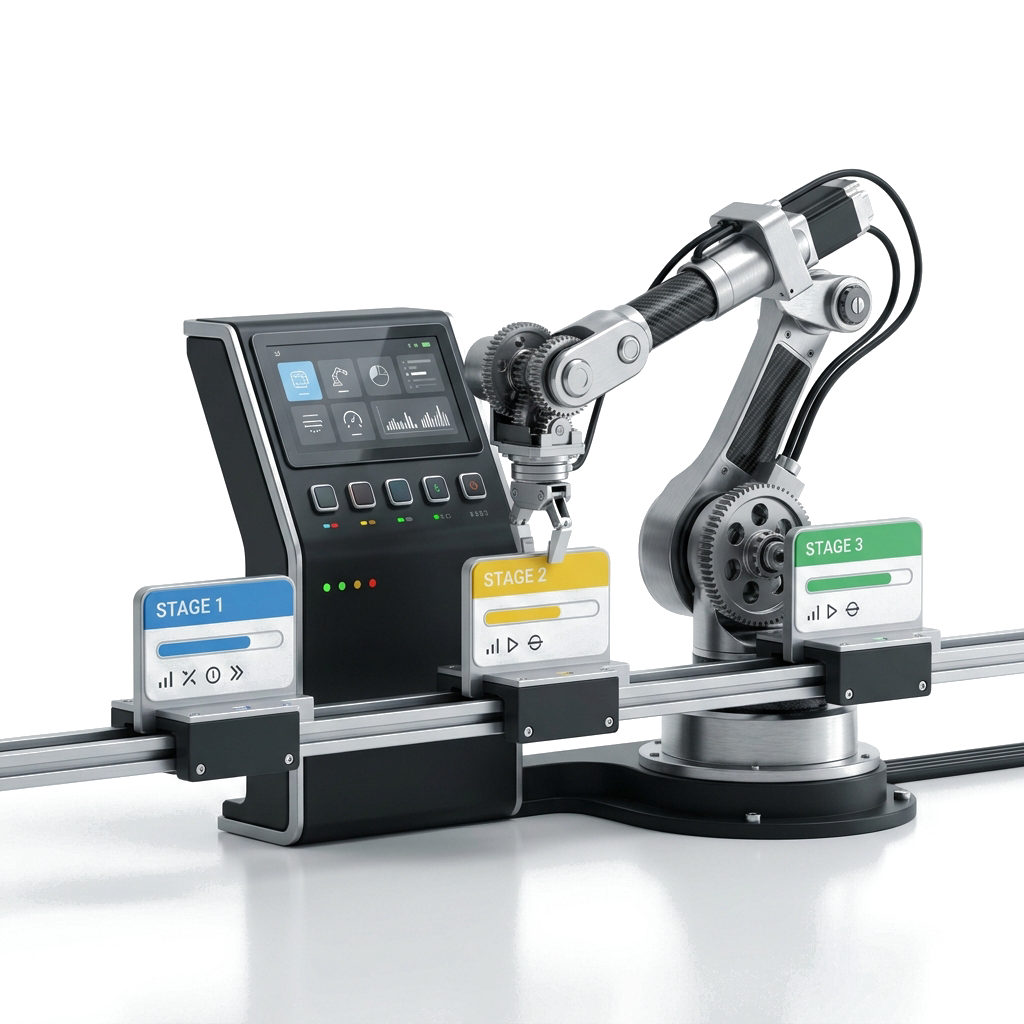
Work orders create operation-level job cards that progress across the shop floor with quantities and workstation context.

Completion

Receive the result with its real production context.

Good output enters stock, rejects remain visible, and consumed material value carries forward into the finished-goods record.

Capacity with a unit

Turn queued minutes into a floor decision.

Workstation capacity compares the planned minutes on open job cards with each station’s available working day, exposing the queue before it becomes a delivery problem.

Complete capability directory

Everything that moves production forward.

Bills of materials

Define what one production run makes, what it consumes and the operations it should create.

  • Create, edit and remove bills of materials for finished inventory items.
  • Set the output quantity produced by one run and keep more than one BOM available for a product.
  • Mark the normal build as the product’s default BOM.
  • Add, remove and reorder component lines with quantities, units and line notes.
  • Allow expected scrap percentages to increase the effective component requirement.
  • Activate or deactivate a BOM without deleting its definition.
  • Build an optional routing with named operations, assigned workstations and planned minutes.
  • Turn routing operations into shop-floor job cards when a work order is created.
  • Estimate material cost per batch from current component costs, quantities and expected scrap.

Production planning

Bring demand, planned output and material readiness into one production decision.

  • Create production plans with one or more finished goods and planned quantities.
  • Pull open sales demand into a plan instead of re-entering required products manually.
  • Add low-stock manufacturable items from replenishment suggestions.
  • Set planned start and end dates for the production window.
  • Choose a source warehouse for component consumption and a target warehouse for finished goods.
  • Review every required component against available quantity before work begins.
  • See component shortfalls consolidated across the complete production plan.
  • Identify planned items that do not yet have an active BOM.
  • Cancel or remove draft plans when the production decision changes.

Material readiness

Turn a shortage into a purchasing handoff without losing its production context.

  • Generate a material request directly from a production plan’s component shortfalls.
  • Create a standalone request with the required items, quantities, warehouse and required-by date.
  • Keep the originating production plan number visible on its material request.
  • Compare requested quantities with on-hand quantities for each component.
  • Show the preferred vendor already assigned to each inventory item.
  • Warn when a requested item has no preferred vendor before purchase-order creation.
  • Create purchase orders from request lines that have purchasing context.
  • Move a material request through Open, Ordered, Received or Cancelled states.
  • Search and filter material requests by number, plan and status.

Work orders

Carry a defined build into production, with quantities, warehouses and dates attached.

  • Generate work orders from a production plan or create one directly from an active BOM.
  • Set planned quantity, start date, end date and production notes.
  • Choose where components are consumed and where finished goods are received.
  • Review required and available material quantities before starting production.
  • Move work orders through Draft, In progress, Completed or Cancelled states.
  • Record good output in more than one production completion when the run is partial.
  • Record rejected output separately as scrap.
  • Consume materials for good and scrapped units while adding only good units to finished stock.
  • Receive completed output into the chosen warehouse with its rolled-up material cost.
  • Review produced quantity, remaining quantity, completion progress and accumulated material cost.

Shop-floor execution

Break the run into visible operations and keep the floor’s progress easy to update.

  • Generate job cards from BOM routing operations or add a job card manually.
  • Connect each card to its work order, operation, workstation and planned quantity.
  • Move work across Open, Work in progress, Material transferred, Completed and On hold stages.
  • Drag job cards between stages on the board or update them through the supported controls.
  • Record completed quantity against the planned quantity for each operation.
  • Search the shop floor by operation, work-order number or finished item.
  • Switch between the visual board and a detailed table view.
  • Review every generated operation from the related work-order record.
  • Remove manual or obsolete job cards when allowed.

Workstations & capacity

Give each operation a real station and compare its queued work with a working day.

  • Create, edit and remove the workstations used by production routing.
  • Keep a name and description for each station.
  • Set available minutes per day for capacity planning.
  • Assign BOM operations and job cards to the appropriate workstation.
  • Calculate queued load from the planned minutes of open job cards.
  • See each station’s open job count and estimated days of work.
  • Highlight workstation load that exceeds one working day.

Quality, scrap & costing

Keep rejects and quality outcomes inside the same record as the work that created them.

  • Mark each job card’s quality status as Pending, Passed or Failed.
  • Keep quality notes with the operation record.
  • Record scrap quantity separately from good production output.
  • Include scrap when calculating the components consumed by a production completion.
  • Keep the material value of scrap separate from the value received into finished inventory.
  • Roll the consumed component cost into the finished-goods stock layer.
  • Review material cost and scrapped units from the work-order detail.

Subcontracting

Send components to a production partner and receive the finished result with cost intact.

  • Create a subcontract order for a vendor, finished item and required quantity.
  • Use the finished item’s default BOM to calculate the components that must be sent.
  • Check required components against available stock before material issue.
  • Choose the warehouse materials leave and the warehouse finished goods return to.
  • Record the vendor’s total subcontract charge and production notes.
  • Move an order from Draft to Materials sent and then Received.
  • Consume component stock when materials are sent to the vendor.
  • Receive finished goods back with material and subcontract charges combined into unit cost.
  • Review material cost, service charge, total cost and received unit cost together.
  • Search and filter subcontract orders by vendor, item, number and status.

Production oversight

Give supervisors a concise view of current load, output, shortages and cost.

  • See open and completed work-order counts with current material cost.
  • Review open production plans, material requests, subcontract orders and job cards.
  • Track units produced and material cost across recent production periods.
  • Compare work orders by status and job cards by shop-floor stage.
  • Open recent work orders directly from the manufacturing dashboard.
  • Keep current material requests visible beside production performance.
  • Filter work-order, plan, material-request and subcontract lists by status and search terms.
  • Keep manufacturing records scoped to the current organisation and authorised users.

Questions, answered

Before the first run.

Can a production plan start from customer demand?

Yes. The current planning flow can bring open sales demand into a production plan. It can also add low-stock manufacturable items from replenishment suggestions or accept manually selected products and quantities.

Can one product have routing as well as components?

Yes. A BOM can hold component quantities, expected scrap and an ordered list of operations. Each operation may be assigned to a workstation with planned minutes and becomes a job card on a new work order.

What happens when production materials are short?

The plan compares consolidated component requirements with available stock. Shortfalls can be turned into a material request, which retains the plan reference and can create purchase orders for lines with a preferred vendor.

Can we record partial output and scrap?

Yes. A work order can record good units in partial completions and keep rejected units as scrap. Materials are consumed for both, while only good output is received into finished inventory.

How is shop-floor progress tracked?

Job cards move through Open, Work in progress, Material transferred, Completed and On hold. Teams can use the visual board or table, record completed quantities and mark QC as Pending, Passed or Failed.

Does Manufacturing support outside production partners?

Yes. Subcontract orders issue default-BOM components to a selected vendor and receive the finished item into the chosen warehouse. Material cost and the subcontract charge are combined for the received unit cost.

Let’s connect
your business.

Bring your workflows. We’ll show you how they fit together in Scalar360.

Book a demosales@scalar360.com