Scalar360 Point of Sale
POS billing connected to stock and accountsEvery counter closes the loop.
Scan the item, shape the cart, take the tender and print the receipt while inventory, customer, invoice and shift records move with the sale.
Indiranagar counter
Shift openScan barcode or search name / SKU
Shift summary
OpenExpected cash
Opening float₹6,000
Cash sales₹28,460
Tender
Ready₹2,682UPI + Cash
Receipt80 mm
Auto-printOn
Barcode lookupWarehouse stockSplit tenderHeld salesOffline outboxCash shiftsThermal receiptsCouponsLoyalty pointsReturnsCredit notes
A fast checkout should not create slow work afterward.
When the till, warehouse, payment record and shift handover live separately, every completed sale leaves another reconciliation task behind.
Scalar360 keeps the counter transaction connected from scan and tender through receipt, stock movement, return and closing cash review.
Counter operations
Fast for the queue. Complete for the business.
The register carries location rules into checkout, then leaves behind the records needed by inventory, sales and finance.
Registers
Give every counter its own operating context.
Bind the till to a warehouse, set its identity, opening float and checkout rules, then activate it for the team.
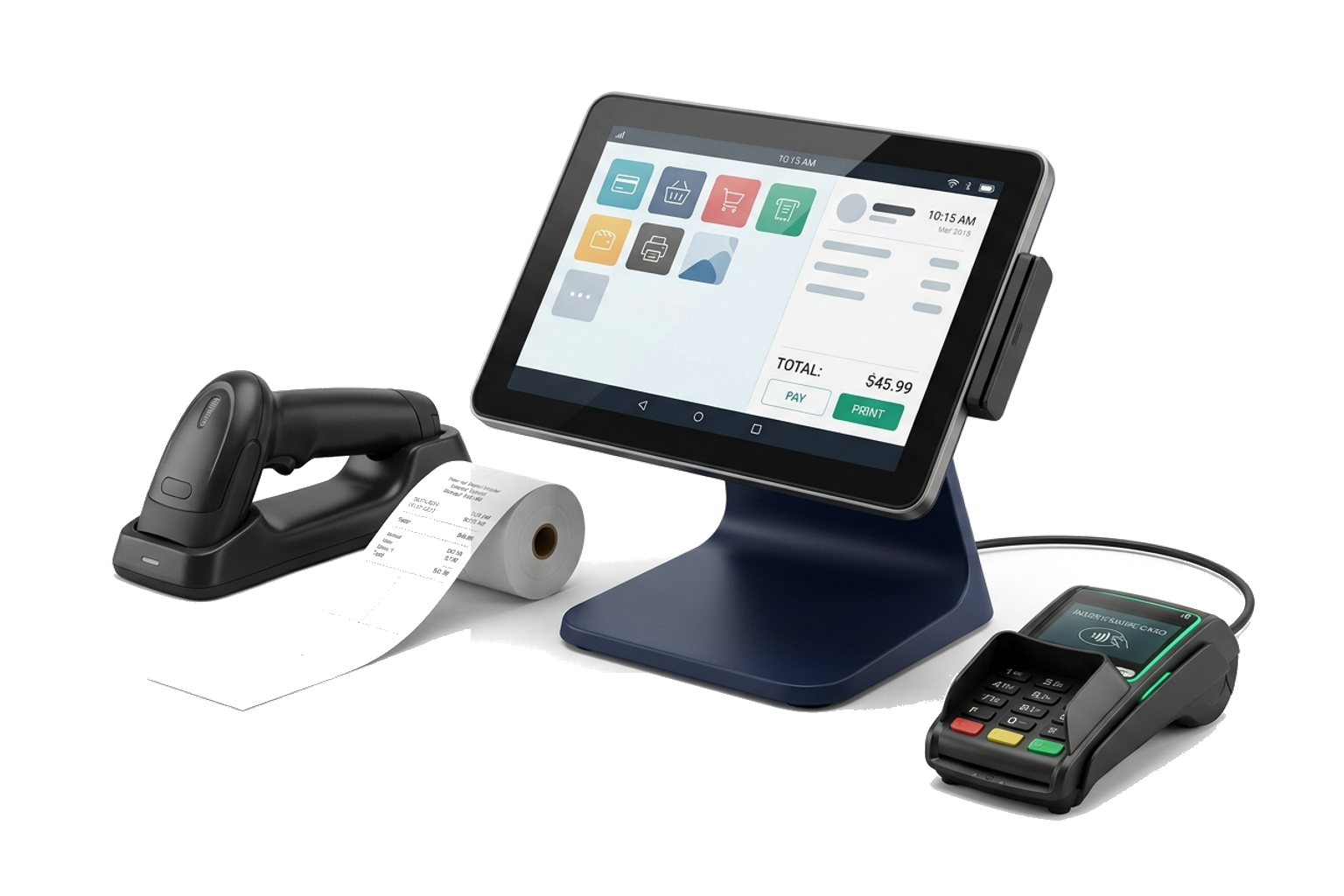
Scan & search
Move from shelf to cart without losing stock context.
Find items by barcode, SKU or name with warehouse quantity, unit, price and GST visible.

Checkout rules
Set the freedom available at each till.
Control decimal quantities, customer requirements, price overrides, discounts and server-enforced caps.

Payments
Record the complete tender mix.
Split one total across cash, card, UPI, wallet, bank or another method and calculate change.
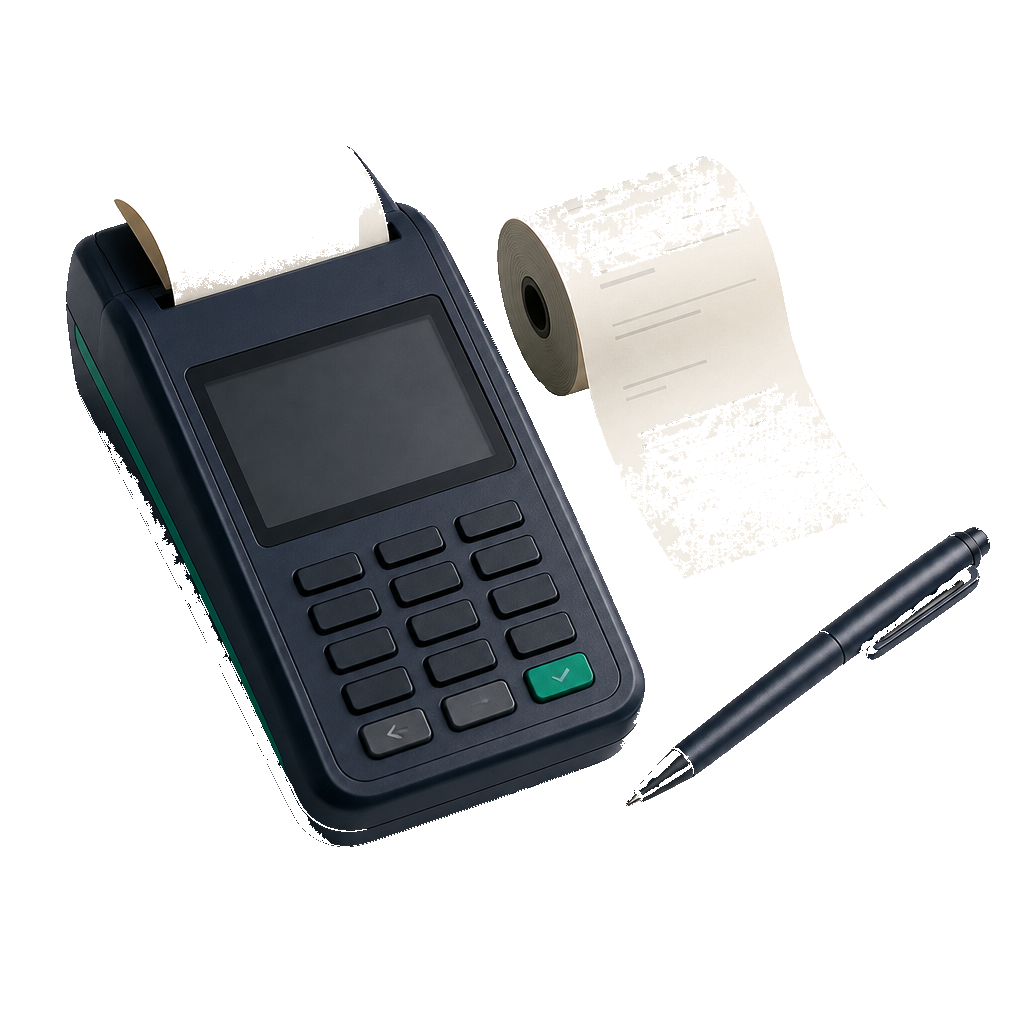
Continuity
Hold a cart or keep selling through a network pause.
Resume device-held sales and safely sync offline checkouts through an idempotent outbox.

Shifts
Know what the drawer should contain.
Opening float, cash movements, tender totals, expected cash and counted variance meet in the closing report.

Receipts
Give every location the right receipt.
Configure header, footer, tax display and paper width, then print through the browser or local ESC/POS bridge.

Coupons & loyalty
Apply the offer without blurring the price.
Validate coupon limits, inspect customer points and redeem only what the balance and remaining sale allow.

Returns
Carry the reversal back into stock and credit.
Start from the original invoice, choose quantities, restock the register warehouse and create the credit note.

Connected records
Keep the counter inside the wider business record.
Checkout issues a numbered POS invoice, adjusts warehouse stock and retains the register, shift, cashier, tax and tender trail.

One connected checkout
Follow the sale from scan to receipt.
Move through each counter moment to see how item, discount, loyalty, payment and inventory context remain connected.
Scan
Find the item at counter speed.
Scan a barcode, enter an SKU or search by name. The result keeps the warehouse quantity, unit, selling price and GST beside the item.
- Barcode or SKU Enter
- Warehouse stock
- Cached offline lookup
Scanned. Settled. Printed. Connected.
The counter keeps its context.
The counter journey
Keep every decision attached to the sale.
The register supplies the rules. The item carries stock and tax. The tender settles the total. The invoice holds the record after checkout.
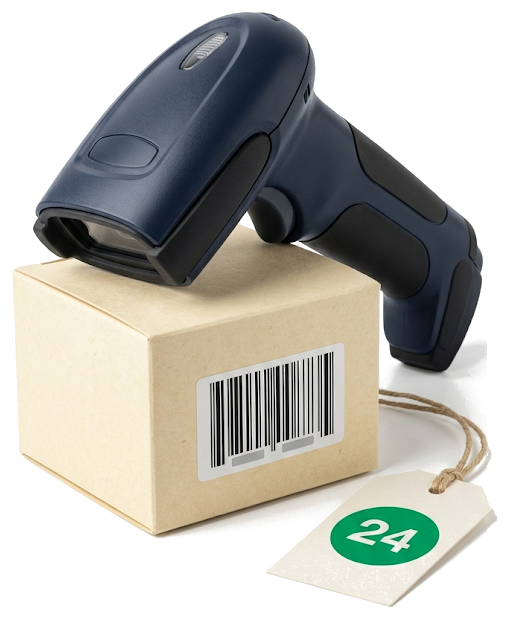
Find
Bring the item into the cart.
Barcode, SKU and name lookup keep register-warehouse stock, unit, price and GST beside the result.
Shape
Apply the register's rules.
Quantity, customer, line discount and price-edit controls change by counter while important limits are checked again on the server.

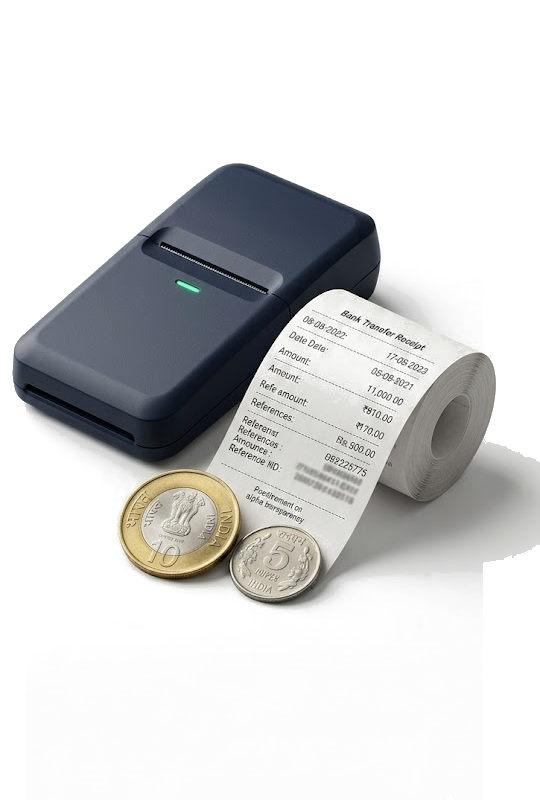
Settle
Record every part of payment.
A sale can combine tender methods, retain references and calculate change before the issued invoice closes the checkout.
Retain
Let the sale carry its history.
The receipt, shift, stock movement, loyalty activity and any later return continue from the same transaction.

Cash with an explanation
Close the shift against expected cash.
Opening float, cash sales, drawer pay-ins and pay-outs establish the expected amount. Counted cash exposes the variance, with tender totals available for review.
Complete capability directory
Everything from opening float to returned stock.
Registers & locations
Give every counter a defined warehouse, identity and set of operating rules.
- Enable or disable Point of Sale for the organisation.
- Create multiple POS registers.
- Give each register a name and optional short code.
- Bind every register to one inventory warehouse.
- Activate or deactivate a register.
- Hide inactive registers from the selling terminal.
- Choose between active registers at the counter.
- Show the register's warehouse in the terminal context.
- Set a suggested opening cash float for each register.
- Review checkout and receipt rules from the register directory.
- Keep register configuration organisation-scoped.
Item lookup & cart
Move from a scan or search to a complete cart without losing stock and tax context.
- Search items by name, SKU or barcode.
- Add an exact barcode or SKU match with Enter.
- Tap a search result to add it to the cart.
- Increase the quantity when the same item is added again.
- Show the item's selling price, GST rate, unit and available stock.
- Read stock from the warehouse attached to the register.
- Show an out-of-stock indication when the warehouse quantity is zero or below.
- Increase, decrease or directly enter cart quantities.
- Allow fractional quantities for weighed goods when the register permits them.
- Remove individual cart lines.
- Clear the entire cart.
- Keep the search field ready for the next scan after a sale.
- Calculate every cart line from quantity, rate, discount and GST.
Checkout rules & totals
Tune the freedom available at each counter and enforce the important limits again on the server.
- Allow or prevent line-level discounts per register.
- Set a maximum discount percentage for each line.
- Cap discounts in the interface and validate the cap during checkout.
- Allow or prevent selling-price overrides per register.
- Allow integer-only or decimal quantities.
- Make a customer mandatory at selected registers.
- Set a default customer name such as Walk-in.
- Select an existing customer or retain a walk-in name.
- Calculate taxable value and GST from the cart.
- Apply coupon and loyalty discounts before the final amount.
- Calculate the final rounded total and retain the round-off value.
- Reject empty carts, missing tenders and non-positive quantities on the server.
Payments & change
Record how the customer paid, including mixed tenders, without presenting a tender record as payment processing.
- Choose Cash, Card, UPI, Wallet, Bank or Other tender.
- Set a default payment method for each register.
- Split one sale across multiple payment methods.
- Add and remove tender lines before completing the sale.
- Record the amount tendered for each method.
- Retain an optional payment reference.
- Show the combined tendered amount.
- Block completion when payment is below the amount due.
- Calculate and display change on overpayment.
- Apply payments only up to the outstanding invoice amount.
- Retain the full tender mix on the receipt response.
Held & offline sales
Keep the counter moving through interruptions while preserving a safe path back to the server record.
- Hold the current cart for later.
- Retain the held cart, customer name and hold time on that counter device.
- Keep as many as 50 held carts on the device.
- Resume a held sale into the active cart.
- Automatically hold the current cart when another held sale is resumed.
- Delete a held sale from the device.
- Cache the register catalogue in IndexedDB for network-loss lookup.
- Search the cached catalogue by name, SKU or barcode while offline.
- Queue completed offline sales in a device outbox.
- Create a provisional offline receipt for the customer.
- Show the number of sales waiting to sync.
- Sync queued sales automatically when connectivity and an open server shift return.
- Use an idempotency key to prevent a retried offline sale from creating a duplicate.
- Queue only genuine network failures rather than business-validation errors.
Shifts & cash drawer
Open the drawer with a known float and close it against expected cash, movements and recorded sales.
- Require an open shift before selling from a register.
- Prevent more than one open shift on the same register.
- Open a shift with the configured or entered cash float.
- Retain who opened the shift and when.
- Record cash pay-ins and pay-outs.
- Record a reason for each cash movement.
- Close a shift with counted cash and optional notes.
- Calculate expected cash from float, cash sales, pay-ins and pay-outs.
- Calculate the difference between counted and expected cash.
- Review sales count and sales value for the shift.
- Review payment totals by tender method.
- Review opening float, cash sales and the cash-movement list.
- Produce a closing Z report after the shift is closed.
- Assign POS sales to the cashier who opened the shift.
Receipts, printer & drawer
Shape the receipt per register and choose browser printing or a local ESC/POS bridge at the counter.
- Write a multi-line receipt header for store details and GSTIN.
- Write a custom receipt footer or return message.
- Choose 58 mm or 80 mm thermal paper.
- Preview the receipt while configuring a register.
- Show or hide the CGST and SGST tax breakdown.
- Print automatically when a sale completes or print manually.
- Reprint the last completed sale.
- Print through the browser when no local bridge is selected.
- Connect a local ESC/POS print agent by URL.
- Send a test receipt to the local agent.
- Trigger a connected cash drawer manually.
- Open the connected drawer automatically for cash sales when enabled.
- Fall back to browser printing when the local print agent is unreachable.
- Keep printer and drawer preferences local to each counter browser.
- Print line quantities, units, rates, discounts, tax, totals, tenders and change.
Coupons & loyalty
Configure offers centrally, validate them at checkout and keep customer points attached to an identified customer.
- Create and edit sales coupons.
- Use percentage or fixed-value discounts.
- Set a minimum sale value for a coupon.
- Cap the value of a percentage discount.
- Set valid-from and valid-until dates.
- Set a maximum number of redemptions.
- Activate or deactivate a coupon.
- Preview and validate a coupon against the cart value.
- Track redemption count.
- Enable or disable the customer-points programme.
- Configure points earned per rupee spent.
- Configure the rupee value of one point.
- Show an identified customer's available points at checkout.
- Clamp redeemed points to the available balance and amount remaining after coupons.
- Earn points from the completed sale and retain earned and redeemed totals.
Returns & refunds
Start with the original invoice, choose the returned quantities and carry the reversal into stock and credit records.
- Find a completed sale by invoice number.
- Show the original customer, date, status and total.
- Show the item lines eligible for return.
- Choose return quantities up to the amount originally sold.
- Preview the GST-inclusive refund amount.
- Record a return reason.
- Generate a sales-return reference.
- Restock returned items into the register's warehouse.
- Create a credit note for the return.
- Choose a credit-note-only outcome or record a cash refund.
- Require an open register shift before a cash refund.
- Record a cash refund as a drawer pay-out with the return reference.
Inventory, invoices & access
Make the counter transaction part of the wider operating record instead of an isolated till log.
- Create POS sales as numbered Scalar360 invoices.
- Mark the resulting invoice as a POS transaction.
- Issue the invoice when checkout completes.
- Reduce stock from the warehouse linked to the register.
- Keep customer identity on the invoice when selected.
- Retain the register and shift on the sale.
- Retain subtotal, line discounts, coupon discount and points discount.
- Retain CGST, SGST or IGST, total GST, round-off and grand total.
- Retain paid total and change given.
- Replay an existing checkout response safely when the same idempotency key is received.
- Control terminal viewing and checkout creation independently.
- Control sale voiding, shift work, coupon management, loyalty settings and register configuration separately.
- Respect wider invoice visibility and modification rules for cashier-owned POS sales.
Questions, answered
Before the first shift opens.
Can Scalar360 POS continue during a network interruption?
Yes. The terminal can search a previously cached register catalogue, queue completed sales in its local outbox, produce a provisional receipt and sync when the connection and an open server shift return. Idempotency protects a retried sale from being created twice.
Which payment methods can be recorded?
A sale can use Cash, Card, UPI, Wallet, Bank or Other, and one checkout can be split across several tender lines. Scalar360 records the tender; it does not itself process the card or UPI payment.
Does POS update inventory?
Yes. Every register is linked to a warehouse. Completing checkout issues the POS invoice and reduces stock from that warehouse; a POS return restocks returned quantities into the same register warehouse.
Can every counter have different rules?
Yes. Register settings cover the warehouse, opening float, default customer and tender, decimal quantities, customer requirement, price editing, line discounts, discount cap, receipt design, paper width, tax display and auto-printing.
Can the terminal use a thermal printer and cash drawer?
Yes. It can print through the browser or a local ESC/POS bridge. The local device settings support a test print, a manual drawer kick and an optional automatic drawer kick for cash sales. Compatibility still depends on the counter hardware and local agent setup.
How are coupons and loyalty points applied?
Coupons can be fixed or percentage based with value, date and redemption limits. Loyalty points belong to an identified customer; redemption is limited by the available balance and the amount remaining after the coupon.
What happens when an item is returned?
The cashier looks up the original invoice, chooses quantities, and processes a GST-inclusive return. Scalar360 creates the sales-return and credit-note records, restocks the warehouse, and can record a cash drawer pay-out when a shift is open.
How is a shift reconciled?
The cashier opens with a float, records cash pay-ins and pay-outs, then enters counted cash at close. The Z report compares counted cash with the expected amount derived from the float, cash sales and movements, and also shows payment totals by method.
Let’s connect
your business.
Bring your workflows. We’ll show you how they fit together in Scalar360.
Book a demosales@scalar360.com